All your bills in one place.
All your bills in one place.
Set money aside and budget more easily.
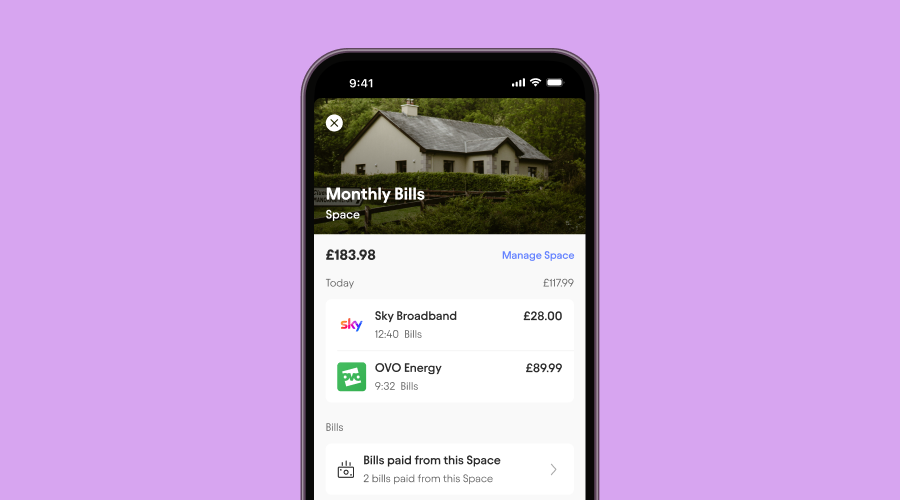
Use Bills Manager to pay Direct Debits and standing orders straight from a designated Regular Space. Put aside already-committed money and get an accurate picture of what’s really available to spend.
Bills Manager is available for personal, sole trader, joint account, and business accounts.
Why Bills Manager is helpful.
A clear picture
Phone bill on the 3rd, rent due on the 9th, and insurance the week after. Working out what’s left once the bills have been paid can quickly get complicated. Set aside money for your bills all in one go, and get a clearer picture of your finances.
Easy budgeting
Your main balance will show exactly how much money is available for day-to-day spending, which makes working out daily and weekly budgets for yourself – or your business – easy.
Automatic payments
Keep money for bills in a ring-fenced Regular Space, and we’ll pay them automatically on their scheduled date.
Peace of mind
Use an automatic transfer to set money aside on your payday, then relax. Consider those bills paid - you won’t need to remember their due dates, or shift money between accounts.
Less manual processing
Business owner? Bills Manager automatically updates and syncs with Xero or FreeAgent accounting software via the Marketplace.
How it works.
Bills Manager lets you pay Direct Debits and standing orders from a Regular Space. You can set a new one up, or use one you have already. Once you’ve chosen which Space you’d like to connect to Bills Manager, click into it, tap ‘Manage Space’ and then ‘Pay bills from this Space’.
Choose which Direct Debits and standing orders you want to pay from this Space. Different Spaces can pay different bills. If you don’t see the payment you’re looking for, check that it’s set up as a Direct Debit or standing order. Tip! Personal and joint account holders can attach a virtual card to their Space, so they can pay card subscriptions straight from a Space too.
We’ll then prompt you to set up an automatic transfer from your main balance to the Space. If you choose ‘Top up to an amount’ we’ll add the right amount of money each time so you always have just the right amount to cover the cost of bills.
Choose ‘Top up by a fixed amount’ and we’ll transfer the same amount each time, regardless of whether there’s money in the Space already. For personal customers, we recommend setting the transfer up for your payday, or the day after.That’s it! The bills will go out on their scheduled dates, paid from your chosen Space.
Check out our blog post on Bills Manager.
Bills Manager FAQs.
What happens if there’s no money in my chosen Space?
Sometimes, there might not be enough money in your Space when a bill is due. When this happens, the payment will fail. We’ll notify you of the payment’s failure, and then continue to try and take the money until 4pm that day. After 4pm, the payment will be marked as declined.How will I know my bills have been paid?
As always, we’ll notify you when a payment is made. You can also see payments by navigating to the Space. Any payments will show on the list of transactions for that Space.What happens if I archive my Space?
Any Direct Debits and standing orders will now be paid from your main balance - you won’t need to do anything. We’ll cancel any automatic transfers from your main balance to your Space. We’ll also add any money left in your Space to your main balance.
You’ll still be able to view the transaction history of a deleted Space in a downloaded statement.What if a Direct Debit is cancelled by the merchant?
When a Direct Debit is cancelled, either by yourself or the merchant, the relevant payment won’t be made from your Space. It will also no longer be shown as an option when choosing which bills to pay from a Space.
Automatic transfers between your main balance and your Space will continue until cancelled.Does the top-up feature work for business and sole trader accounts?
Yes - like our personal account you can automatically top up Regular Spaces, so they always have the right amount to pay Direct Debits and recurring payments.
‘Top up to an amount’ gives the option to move only the money needed to cover payments, instead of a fixed amount each time. We’ll calculate how much is needed and transfer it across to the Space.
To use this feature, tap ‘Manage Space’ > ‘Automatic Transfer’ > ‘Type’ and then select ‘Top up to an amount’.Does Bills Manager work with Starling Accounting?
Yes, if you’re subscribed to Starling Accounting, any bills paid from one of your Spaces will be automatically categorised and recorded for you.
You can easily review these payments anytime in the Transactions tab within Accounting.Does this feature work with Marketplace accountancy integrations?
If you’ve already connected your Starling business account (or are planning to) with Xero or FreeAgent via the Marketplace, payments from Spaces will sync and feed into your software automatically.
The feature does not work with Quickbooks (please contact the software provider for guidance on how to ensure all payments are included in your reconciliations).

Looking for help?
Visit our help centre for a full range of frequently asked questions on Bills Manager. It’s often the quickest way to get the answers you need – from within the app or online.
Visit our help centreJoin the millions of people getting good with money.
Award-winning accounts. No monthly fees. Industry-leading security features.
Apply now